
A Tender Alert is a search filter using categories, keywords, and regions that you define based on what is relevant to your business. Once set up, we will send you an email when a new tender is added that matches your alert criteria, or when a tender on your watchlist is updated.
The most significant advantage of our service is prompt notification of new private and government tenders.
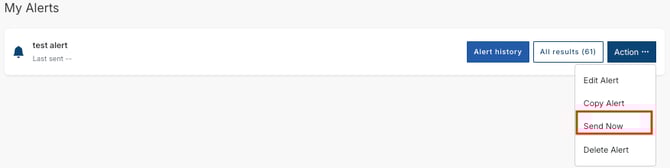
Tender alerts begin sending emails from 4:00 pm (AWST) each day. However, you can trigger an immediate send at any time by clicking the Send Now button within your alert. After 4:00 pm, you will only receive a further email if new tenders have been added or existing tenders updated since you last clicked Send Now.
Each alert will potentially trigger two emails: one for Active tenders (Current and Future status) and one for Awarded tenders, depending on your alert settings. Any changes to tenders on your watchlist will also trigger a separate email, which is sent immediately when the tender is updated.
Step 1: Add an alert
- Select
 from the top right corner of the home page
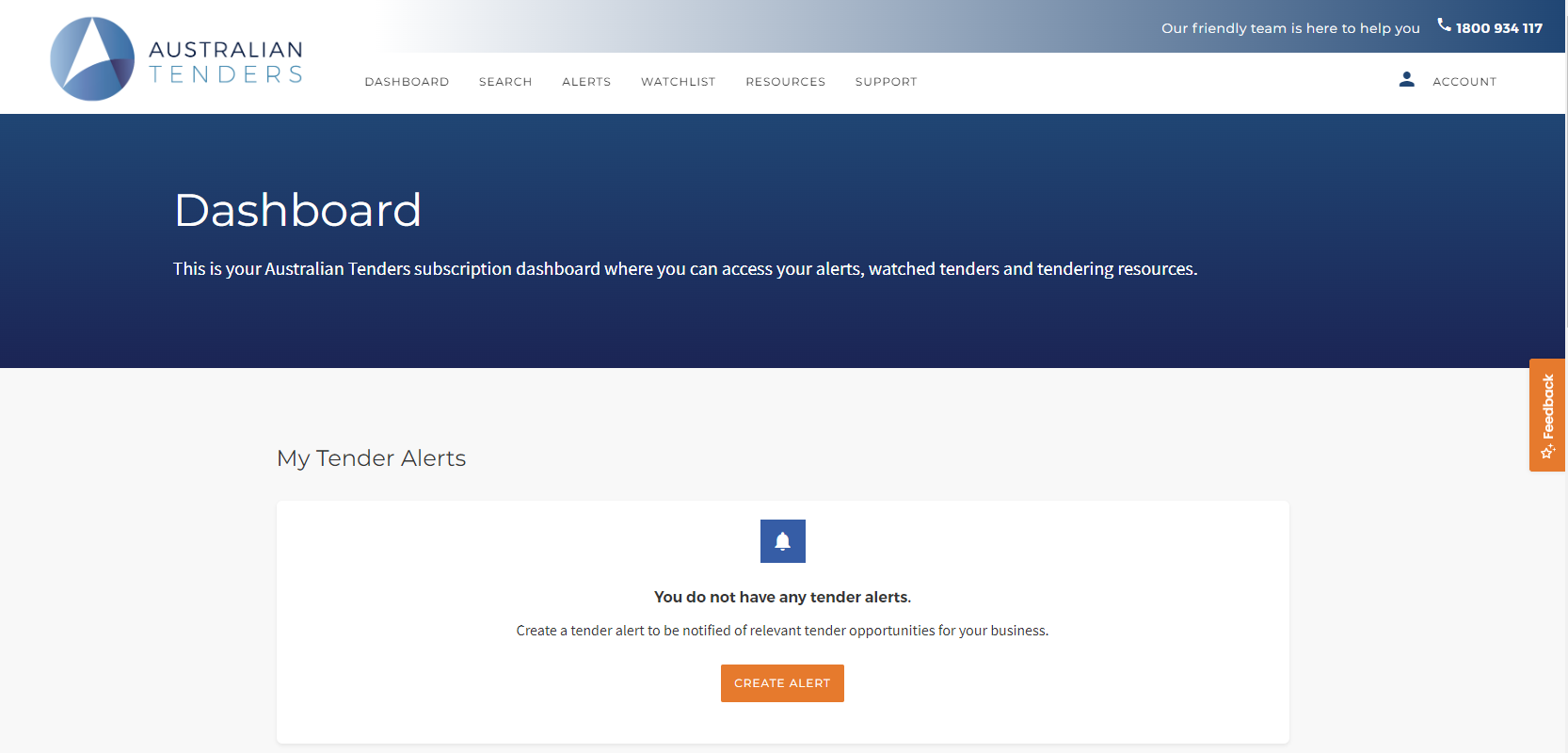
 - From the Dashboard, click CREATE ALERT
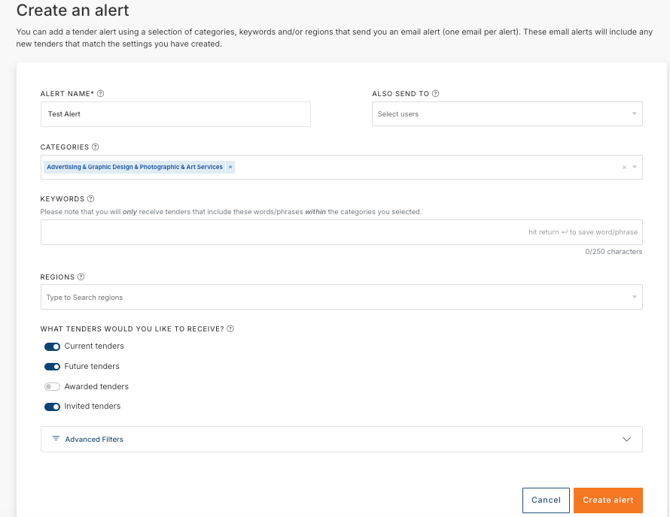
- Enter a name for your alert
- Select Categories - You can search for categories by entering keywords in the category field. If a match is found, the relevant categories will be listed. Select the categories that most closely align with the services you offer
- Enter keywords(IF REQUIRED)
-
If no matching category is available, you can enhance the alert by adding relevant keywords to tailor it to your business.
- Maximum of 250 characters
-
-
- Special characters such as quotation marks and the asterisk are not allowed, as they do not function as they would in other search engines.
- Add plural and singular (especially where the spelling differs!), for example
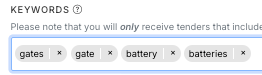
- If you use keywords, we recommend limiting the search across relevant categories. A keyword search using the example above would be best limited to the category "Electrical Systems & Lighting & Equipment & Services" and "Gates"
-
By default, our search engine matches any of the words entered. If you want to search for an exact phrase, type it in and press enter to confirm it as its own bubble before adding anything else. For example: "Project Management"
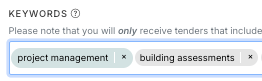
- Select the regions that match your business coverage and subscription plan
- Select which tender statuses you would like to receive in your alert emails. By default, all statuses are included. Move the slider to the left to exclude a specific status from your alerts
- Click Create Alert to save
Preview the results of your alert to see the existing tenders!
Once you have set up your alert, we will send you an email notifying you of any new tenders that match your alert parameters. However, there may also be existing tenders already in the system that match your parameters. After saving, you will be advised if any matching tenders are found, and we recommend reviewing these.

- Click View to see matching tenders
- Click Continue to return to the alert homepage
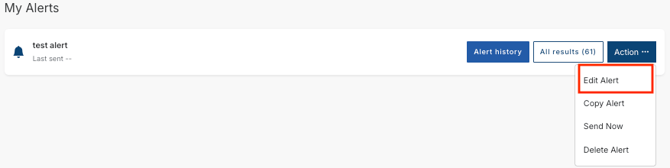
Step 2: Edit/Copy/Delete an Existing alert
-
To make changes to an existing alert, click on the ellipses next to the alert andmake the required changes
Need a little help?
Just email us at support@australiantenders.com.au or call our friendly Australian support team on 1800 934 117.