
Deleting the alert will also stop the emails, but we recommend just switching the alert off in case you change your mind later.
Step 1: Amend alert
- Select
 from the top right corner of the home page
 - Select ALERTS from the main menu at the top of the page
- Click on Action

- Select Edit Alert
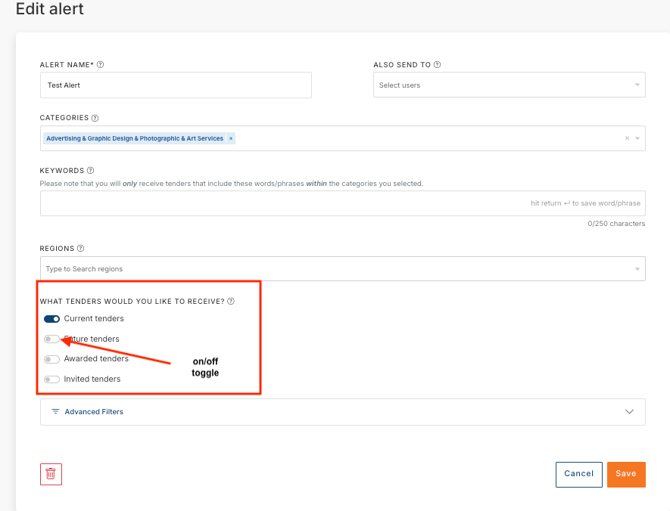
- Slide the toggle next to each option to turn it on or off. A blue toggle means that notification type is active. When all toggles are white, no alert emails will be sent
- Click on Save
Please Note
Alert emails are transactional emails, not marketing emails, as they are part of your paid subscription. Unsubscribing from marketing emails will not stop alert emails. To stop receiving alert emails, you must switch off your alerts using the steps above.
Need a little help?
Just email us at support@australiantenders.com.au or call our friendly Australian support team on 1800 934 117.